
Welcome to Kindle Publishing for Periodicals (KPP). Refer to this guide for details on the integration process to add your publication to the Kindle store.
Feed Requirements and Best Practices
Other Technical Specifications
Article Correction and Retraction
D: Supported HTML Tags and Attributes
Getting Started
Overview
Amazon's Kindle E-readers and Fire tablets are digital wireless reading devices that offer a great way for readers to subscribe to and read periodical content. The Kindle E-reader combines free automatic wireless delivery with an advanced paper-like display that makes it a pleasure to read. Fire tablets are high performance tablets designed for entertainment at an affordable price. Free Kindle reading applications provide top-rated reading options for iOS, Android, Mac, and PC.
Using Kindle Publishing for Periodicals (KPP), publishers can add their publications to the Kindle store just like The New York Times, The Wall Street Journal, The Economist, and PEOPLE Magazine. KPP allows publishers to preview their publications before they are delivered to subscribers.

What to Expect
This step-by-step guide is intended for publishers who would like to add their publication to the Kindle store. After reading this guide, you will:
· Understand the process to add a periodical to the Kindle store
· Understand the technical requirements to add a periodical to the Kindle store
· Get answers to commonly asked questions

Assumptions
This guide assumes that KPP users:
· Have distribution rights for the content in the publication and full content for each edition/issue
· Have basic knowledge of XML, RSS, and XHTML
· Can provide publication content in XML and XHTML format
· Can provide a Print Replica feed from a conversion vendor. (To supply a Print Replica feed, contact newsstand@amazon.com.)

Integration Workflow
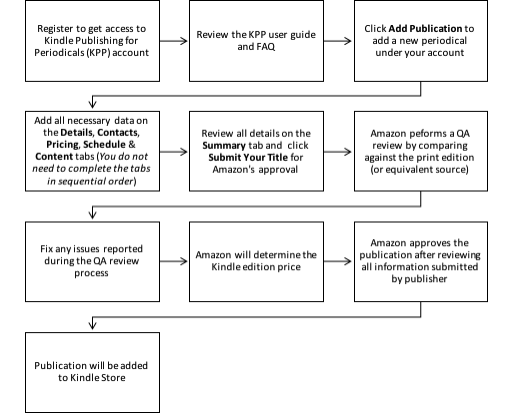
The process to add a new periodical is shown below.
Kindle Periodicals Publishing Workflow

Integration Checklist
To add a publication to KPP, you will need to provide the following information:
1. Publication Details: Your publication title and publication type
2. Product Image: The cover or front-page image of your publication to display in the Kindle store. (After initial setup, the latest cover image for a magazine is picked up from the content feed. For newspapers, the initial front-page image stays in place.)
3. Periodical Description: A brief description of your periodical to display in the Kindle store
4. Masthead Image (optional): The title logo image, which is used as the title in the Kindle files
5. Content: Your publication content as an XML feed or Folio feed. We accept feeds in NITF or XHTML format. You can also upload your content as a PDF from a secure FTP. See Feed Specifications Overview for more details.
6. Contact Details: Business, technical, and support contact information
7. Publishing Schedule: Publishing frequency and holiday (non-publish days) schedules
8. Pricing Details: Marketplaces, subscription billing term (annual or monthly), suggested digital single issue and subscription price for each marketplace, and new subscriber promotional offer.
Note: All publications must consistently meet the QA Guidelines. Failure to do so can result in removal of the publication from the Kindle store.
If you have more questions on the integration process, see the FAQ.

Integration Details
1. The first step in the publishing process is the Details page. Here you can provide details about your publication, including title, description, publication type, product/masthead images, categorization within the Kindle store, search keywords, language, and issues per year.
2. On the Contacts page, you can provide contact information for your business, technical, and support staff, country, and address.
3. On the Pricing page, you can specify marketplaces, subscription billing term (annual or monthly), suggested digital single-issue and subscription price for each marketplace, and new subscriber promotional offer.
4. On the Schedule page, you can specify publication start date, recurring or manual schedule, time zone, publication time, frequency, and non-publish dates.
5. On the Content page, you can provide publication content in XML feeds, preview the Kindle files, and verify the quality of your publication. You can expect to spend the majority of your time in this process. This step is expected to be iterative, in that you will review the Kindle preview files and refine your feed structure and content until you meet Amazon’s QA guidelines.
Note: You must use feeds at locations on servers that are accessible by Amazon and that you control and are authorized to distribute. You can check if your feed path is set up correctly by following the directions in the Content section to test your Kindle file.
6. The Summary page displays all of the information you have entered. Make changes as needed and then click Submit to Kindle to submit your publication.
7. Amazon performs a QA review by comparing the Kindle files to your print edition. You must provide us access to the print edition PDF files or online e-editions. If the publication does not have a print edition, we will QA against the online edition. The Kindle files must meet the QA guidelines and include all articles that are in the QA reference. We will notify you if there are any issues in the feed that need to be addressed.
8. After the publication has been approved by the QA team, Amazon will determine the Kindle edition price based on several factors, including the subscription price for the print edition (when applicable), publishing frequency, and pricing of similar products on the Kindle. You will receive an email notification with the pricing details prior to launch of the publication.

Details
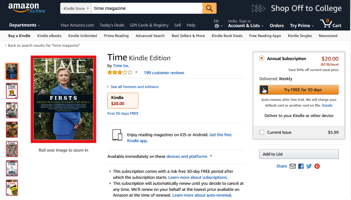
The information entered on the Details page is displayed on the product detail page in the Kindle store.

Title Name
This is used as the name of the publication in the Kindle store as well as on Kindle devices and applications.

Description
Provide a short paragraph describing the publication and highlight key features of the product. Product descriptions should be free of grammatical errors and written in paragraph form using complete sentences that are easy and interesting for the customer to read. Until an Amazon review is written, this description may be the only detailed information the customers will see in the Kindle store and will use to make buying decisions.
Note: For non-English publications, please provide the product description in English as well as the publication language.
What to include in a periodical description
· Highlight key features that make your publication unique: Point of view, special topics covered, notable awards, featured columnists and writers.
· Positioning within the industry.
What not to include in a periodical description
· Reviews or quotes.
· References to features and content not found in the Kindle edition.
· Phone numbers, physical mail addresses, e-mail addresses, or website URLs.
· Advertisements or promotional material.
· Availability, price, condition, alternative ordering information (such as links to other websites for placing orders).
Periodical Description Example:
The color Kindle edition of The Economist - US Edition is now available on the Kindle Reading App for your Android device. Download issues at no extra cost from Archived Items.
The Economist is the premier source for the analysis of world business and current affairs, providing authoritative insight and opinion on international news, world politics, business, finance, science and technology, as well as overviews of cultural trends and regular Special reports on industries and countries.
Established in 1843 to campaign against the protectionist corn laws, The Economist remains, in the second half of its second century, true to the liberal principles of its founder. James Wilson, a hat maker from the small Scottish town of Hawick, believed in free trade, internationalism and minimum interference by government, especially in the affairs of the market. The Economist also takes a fiercely independent stance on social issues, from gay marriage to the legalisation of drugs, but its main service to its readers is as a global newspaper: To uncover new ideas from all around the world.
The Kindle Edition of The Economist contains all of the articles and graphics found in the print edition, but will not include all photos. For your convenience, issues are auto-delivered wirelessly to your Kindle each Friday at the same time the print edition hits the newsstand.
Publication Type
Choose Magazine or Newspaper.

Product Image
The product image is displayed on the product detail page in the Kindle store. You must provide a screenshot of the cover page of your periodical. We accept images in GIF, JPEG, and PNG formats. The recommended image size is 800 x 600 pixels (height x width) or above. The image file size must be under 1 MB.
You can use a screenshot of the website if the publication does not have a corresponding print edition.
Examples of product images:
|
|
|
|
|
|




Masthead Image
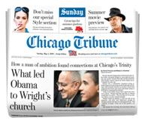
The masthead or the banner image is the title logo for your publication. This image is displayed as the title in the Kindle files.
Image Specifications:
· GIF format
· Center-aligned text
· Recommended size: 430 x 50 pixels (width x height) or above. If you provide an image in a different size, it will be automatically scaled to the recommended size. Image resolution may be lost during the scaling process.
· For best results, please provide images with high contrasts. Avoid using light colors. Black and white images are preferred.
Examples of Masthead/Banner Images:



Categories
Amazon will use categories to classify your publication in the Kindle store. Suggest up to 3 category suggestions that most closely relate to your publication’s content. The Amazon team will select the final categories that will be used to classify your publication in the Kindle store.

Search Keywords
Search keywords and key phrases improve the chances of your publication's inclusion in search results. When customers shop on the Amazon website or their Kindle, they may perform a search by typing their own keywords or key phrases into the search field. If the keywords match a customer's search, a link to your publication is displayed in the search results.

Language
KPP currently supports publications in English, French, Spanish, German, and Italian. The feeds should use UTF-8 encoding. Notify newsstand@amazon.com if you would like to add a publication in a language that uses UTF-8 encoding but is not currently supported by KPP.

Issues Published per Year
Specify the number of editions published each year.

Contacts
The following information is entered on the Contacts page.
Business, Technical, and Support Contact Information
Provide business and after-office-hours contact details for your business, technical, and support staff. We will notify these contacts if there are any issues with the feed or the QA reference source.

Publication Country
Specify the country where your publication’s offices are based.

Publication Address
Specify where your publication’s offices are based.

Pricing
Amazon will determine the Kindle edition price based on several factors, including: the subscription price for the print edition (when applicable), the suggested digital price, the average Kindle file size, publishing frequency, and pricing of similar products on the Kindle.
Kindle edition price can only be determined after we process the feed and determine the average file size. You will receive an email notification with the pricing details prior to launch of the publication. If you have any questions, you can contact us at newsstand@amazon.com.
The following information is entered on the Pricing page.

Marketplaces
Select all locations where you want to sell your publication and where you also have publishing rights. After submitting the marketplaces where you want to sell your publication, you will be able to set up regional pricing for each marketplace.

Subscription Billing Term
Choose Annual billing or Monthly billing.

Marketplace Pricing
Provide your publication's suggested subscription price and single-issue price for each marketplace.

New Subscriber Promotional Offer
Select the promotional offer to apply to your publication.

Schedule
Kindle editions must be published on or before the print edition is available on newsstands. Feeds must be delivered at least one hour before the print edition is available on newsstands. For online-only publications, provide the feed after most content has been updated for the day (or the publishing duration). Only newly added content should be included in the Kindle feeds.
You can select a Recurring Schedule or a Manual Schedule.
Customize the Time Zone, Publication Time, Frequency, and all Non-Publish Dates (holidays and other exception days) when no new issue will be published to match your publication’s schedule.
Notify newsstand@amazon.com if the application does not provide scheduling options that meet your requirements.

Content
On the Content page, you can provide your content as an XML feed, a Folio feed, a PDF, a combination of XML feed and Folio feed, or as a combination of Folio feed and a PDF.
Provide the URL(s) to your feed(s) or your PDF file and then generate a preview link to test your publication’s Kindle file.
When viewed on tablets, all of the magazine pages are displayed as images. While browsing through the magazine, you can toggle between image mode and text mode by clicking the controls at the top of the screen.
When viewed on an e-Reader, the file opens on the cover page of the periodical and you can navigate to any section or article by clicking on the links in the Table of Contents. The image view is not available on e-Readers.
To test your Kindle file:
- After providing your feed information, click the Generate preview link button. This process can take 20 minutes to complete. If you want to be notified when the preview is ready, enter your email address in the Technical Contact Email box and click the Submit button.
- When the preview is ready, the link(s) appear below the Generate preview link button:
- If you included an XML feed, Download MOBI for sideloading is displayed.
- If you included a Folio feed, Download KFX for sideloading is displayed.
- If you included XML and Folio feeds, both links are displayed.
- Any errors or warnings are also displayed.
Click the link to download the preview file.
- Test your Kindle content with a Kindle E-reader, a Fire tablet, or the Kindle application on other devices.
Sideloading to Fire tablets:
a. Connect your Fire tablet to your computer using the USB cable and open the device's Internal Storage file folder.
b. Drag your preview file into the Documents folder and then unplug your device. On your device, go to the Documents folder and click the name of the file to open your periodical.
Sideloading to Kindle E-readers:
a. Connect your Kindle E-reader to your computer using the USB cable and open the device's Internal Storage file folder.
b. Drag your preview file into the Documents folder and then unplug your device. On your device, go to My Library and click the cover image of your periodical to open it.
Sideloading to Android devices:
a. Confirm that the Amazon Kindle app is installed. If not, you can download it for free from the Android Play Store.
b. Connect your device to your computer using the USB cable and then pull down the Android menu from the top of the device and change USB charging options to Transfer Files to enable the transfer of Kindle files.
c. Open the device's Internal Storage file folder, drag your preview file into the Kindle folder and then unplug your device. On your device, go the Amazon Kindle app and click the cover image of your periodical to open it.
Sideloading to Apple devices (iOS):
a. Open iTunes on your computer and select your device.
b. Select File Sharing along the sidebar, which highlights the list of applications.
c. Select Kindle and a list of Kindle documents appears next to the applications list.
d. Select Add File and add the preview file you wish to preview on iOS.
e. Open the Amazon Kindle app from the iOS device and click Sync from the drop-down menu to display the sideloaded magazine under All Items in the Device toggle option.

Summary
Once you have successfully completed the Details, Contacts, Pricing, Schedule, and Content pages, the Summary page displays all of the information you have entered.
To make changes, click the Edit link of the section you want to change. When you are satisfied with the Summary information, click Submit to Kindle. If your submission is successful, success flashes briefly. (If the submission is unsuccessful, the errors are displayed in red so that you can correct them.)

QA Reference Source
Every publication will go through a Quality Assurance (QA) review process before it can be launched on the Kindle store. The publication must consistently meet the QA Guidelines to qualify for launch. The Amazon QA team will compare the Kindle feed contents to a QA reference source. The QA reference will be the print edition or the website (for online-only publications). The Kindle feeds must match the print edition, when available.
Please provide us access to PDF files or e-editions for the QA review process. You can send an email to newsstand@amazon.com with details. Let us know if you need an account on Amazon's FTP server for uploading the print edition PDF files.

QA Guidelines
The Kindle feed must consistently meet the following requirements to qualify for launch. Failure to do so can result in discontinuation of the publication.
· Content must match the QA reference. If there is any content that you cannot provide due to rights restrictions, please notify newsstand@amazon.com. If content is only available online, only include new content in the feed. Do not resend older content.
· Section names and section order should match the QA reference.
· Article order should match the QA reference. For newspapers, all lead articles (articles displayed with the largest font or at the top of the page) should be listed at the top of each section.
· All articles should appear in their appropriate section (match the QA reference).
· Section titles and article titles should have consistent formatting in capitalization.
· Paragraphs should have first line indents or one line space between paragraphs or other formatting style to indicate paragraphs.
· There should be no duplicate articles within or across sections.
· If an article summary is derived from the first paragraph of the article, the summary should not be repeated on the first page of the article.
· There should be no web links in articles.
· Tabular content should be provided using XHTML table tags.
· Subheadings in articles should be in bold font and left justified.
· The title in the masthead/banner logo should be readable and match the QA reference.
· The feed should be delivered at least one hour before the print edition is available on newsstands. For online publications, provide the feed after most content has been updated for the day (or publishing duration). Do not include content that has been previously published on Kindle.
· Provide color images in the largest possible size and highest resolution. We automatically resize large images for optimal quality.
· Provide game scores, horoscope, and weather content when available.

Feed Specifications
The Kindle XML feed contains two types of files: manifests (sometimes called catalog files) and article files. The manifest files specify the different sections and articles that will be included in the publication. The article files contain the actual article content. The manifest files should be provided in standard RSS 2.0 format. The article content can be provided in NITF (versions 1.3, 3.4) or XHTML format.
The manifest and article files can be organized as a Multi-Level Feed or as Multiple Individual Feeds.

Multi-Level Feed
A Multi-Level Feed is a single feed address that points to a Section Manifest file that lists all the sections in the publication. This Section Manifest file, in turn, provides links to Article Manifest files, which list all the articles in every section. These Article Manifest files further link to the individual article files, which provide the article content in NITF or XHTML format.
Figure: Multi-Level Feed Structure
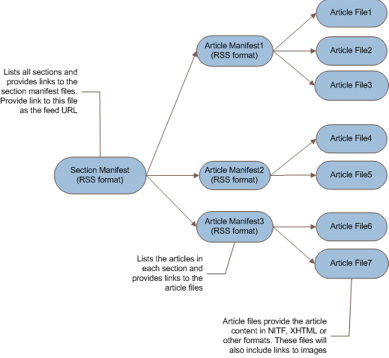
To add a publication using the Multi-Level Feed Format, you must enter a single feed URL that points to the Section Manifest file (e.g., http://www.domainname.com/kindle/manifest.xml). The KPP application parses the feed structure and downloads all of the linked articles in the feed. See the sample multi-level feed for more details.
Advantages and Disadvantages of Using a Multi-Level Feed Format
|
Advantages |
Disadvantages |
|
· You have more control over the layout sections and articles. · You can easily change Section names. · You can easily modify Section and Article order by modifying the manifest files. · You can add or drop special sections by modifying the manifest files. |
· Complexity: More work is required to create the multi-level manifest files. · You have to modify the content in the manifest files to rename or reorder any section. |

Multiple Individual Feeds
In this format, you must provide multiple Article Manifest files that provide links to the individual article files. Each Article Manifest file represents a section in the publication (the section title can be renamed, if needed). All sections entered together represent the fixed collection of sections in your publication. Not all sections need to be updated for every new edition. A section is dropped if no new content was added in that specific section.
Figure: Individual Feed Structure
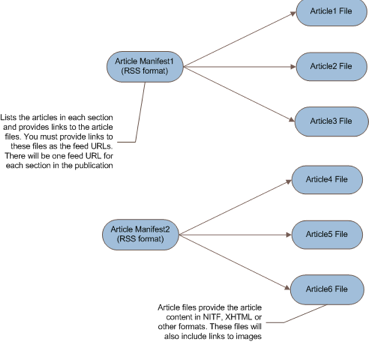
To add a publication using the Individual Feed Format, you must enter multiple feed links. Each link corresponds to a section in the Kindle files (e.g., http://www.domainname.com/kindle/News.xml corresponds to the News section; http://www.domainname.com/kindle/Sports.xml corresponds to the Sports section).
Advantages and Disadvantages of Using Individual Feed Format
|
Advantages |
Disadvantages |
|
· If you already use RSS feeds, you may be able to repurpose them directly for KPP. · You can easily change Section names using the KPP application. · You can easily reorder Sections by using drag & drop in KPP. |
· The same feed URLs will be used for processing each edition. To change a section, you will have to modify the feed.
|

Feed Requirements and Best Practices
· XML feeds must be well formed and free of errors.
· Feeds must be provided on or before the scheduled time.
· Feeds must include contents to match the QA reference (print or online edition).
· Feeds must consistently meet the required QA Guidelines.
· Feeds should contain a minimum of three sections with at least three articles under each section.
· Feeds should not reference the same article in multiple sections.
· Articles should be self-contained. For example, it should not contain links to other articles or references to external content not readable on Kindle.
· Articles should contain images when possible. Small images (100 x 100, 125 x 80, etc.) may be dropped and Amazon may manage the number of images in a publication due to cost considerations.
· Articles should have identifiable metadata whenever possible including IDs, titles, bylines, summaries, and publication dates.
· Remove advertisements or links to third-party content.
· Media types or embedded players that cannot be displayed on Kindle (such as video, audio, or Flash content) should NOT be present.
· Article body content formatting should be limited to simple XHTML markup as specified below.
Articles may be dropped when they do not meet the following criteria:
· Article is empty or has very few words.
· Article is a duplicate of another article (determined by duplicate article title or URL).
· Article is too old for the publication schedule. For example, a daily publication will drop articles that are more than one day old. This is determined by comparing the publication date (latest date in any article) to the current article date.
· The article is not well-formed XML.
· Articles for which no title was found.
· Article could not be downloaded. (Check whether the link is broken.)

Print Replica Feed Format
The Print Replica feed format uses manifest.xml, section manifests, and article files similar to the NITF feed format. It also includes replicaMap.xml, which determines the order of Replica pages and enables the option to toggle between image view and text view.
manifest.xml
<?xml version="1.0" encoding="UTF-8"?>
<rss version="2.0">
<channel>
<title>Magazine title</title>
<link>manifest.xml</link>
<pubDate>20171001</pubDate>
<item>
<title>Cover</title>
<link>section_cover.xml</link>
</item>
<item>
<title>FEATURES</title>
<link>section_features.xml</link>
</item>
<item>
<title>FOOD & FUN</title>
<link>section_food_and_fun.xml</link>
</item>
</channel>
</rss>
section_cover.xml
<?xml version="1.0" encoding="UTF-8"?>
<rss version="2.0">
<channel>
<title>Cover</title>
<link>section_cover.xml</link>
<item>
<title>Cover</title>
<link>article_cover.xml</link>
</item>
</channel>
</rss>
section_features.xml
<?xml version="1.0" encoding="UTF-8"?>
<rss version="2.0">
<channel>
<title>FEATURES</title>
<link>section_features.xml</link>
<item>
<title>THIS BURGER HAS A SECRET</title>
<link>article_features-2.xml</link>
</item>
</channel>
</rss>
section_food_and_fun.xml
<?xml version="1.0" encoding="UTF-8"?>
<rss version="2.0">
<channel>
<title>FOOD & FUN</title>
<link>section_food_and_fun.xml</link>
<item>
<title>9 FAST IDEAS</title>
<link>article_food_and_fun-1.xml</link>
</item>
<item>
<title>THE TOAST WITH THE MOST!</title>
<link>article_food_and_fun-2.xml</link>
</item>
</channel>
</rss>

article_features-2.xml
<?xml version="1.0" encoding="UTF-8"?>
<!DOCTYPE nitf PUBLIC "http://www.nitf.org/dtds/nitf-x020-strict.dtd" "nitf-x020-strict.dtd">
<nitf>
<head>
<title>Magazine title</title>
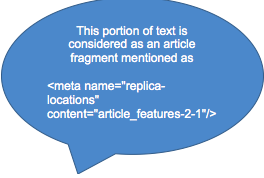
<meta name="replica-locations" content="article_features-2-1"/>
<docdata>
<date.release norm="20171001"/>
<date.issue norm="20171001"/>
</docdata>
<pubdata date.publication="20171001" name="Magazine title" volume="1" issue="1"/>
</head>
<body>
<body.head>
<headline>
<hl1>BURGER RECEIPE</hl1>
</headline>
</body.head>
<body.content>
<block>
<content>
<img src="file.jpg"/>
</content>
<h3>BURGER RECEIPE</h3>
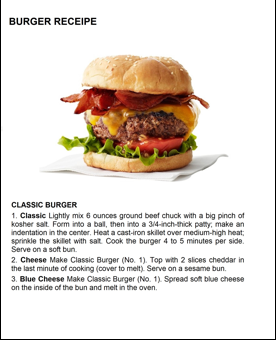
<p width="0"><a name="article_features-2-1" class="replica-location"/>1. <strong>Classic</strong> Lightly mix 6 ounces ground beef chuck with a big pinch of kosher salt. Form into a ball, then into a 3/4-inch-thick patty; make an indentation in the center. Heat a cast-iron skillet over medium-high heat; sprinkle the skillet with salt. Cook the burger 4 to 5 minutes per side. Serve on a soft bun.</p>
<p width="0">2. <strong>Cheese</strong> Make Classic Burger (No. 1). Top with 2 slices cheddar in the last minute of cooking (cover to melt). Serve on a sesame bun.</p>
<p width="0">3. <strong>Blue Cheese</strong> Make Classic Burger (No. 1). Spread soft blue cheese on the inside of the bun and melt in the oven.</p>
</block>
</body.content>
</body>
</nitf>
replicaMap.xml
This xml file defines the order of replica pages and enables their corresponding text view.
<?xml version="1.0" encoding="UTF-8"?>
<ReplicaMap xmlns="http://kindlepublishing.amazon.com/schemas/replicaMap/1.1" schemaVersion="1.1">
<Title>Magazine title</Title>
<Pages>
<Page pageNum="0" file="images/pages/pg-001.jpg" thumbFile="images/pages/pg-001-thumb.jpg" hi-res-file="images/pages/pg-001-hi-res.jpg" hi-res-thumbFile="images/pages/pg-001-hi-res-thumb.jpg">
<Article file="article_cover.xml" fragmentId="article_cover-1"/>
</Page>
<Page pageNum="1" file="images/pages/pg-002.jpg" thumbFile="images/pages/pg-002-thumb.jpg" hi-res-file="images/pages/pg-002-hi-res.jpg" hi-res-thumbFile="images/pages/pg-002-hi-res-thumb.jpg"/>
<Page pageNum="2" file="images/pages/pg-003.jpg" thumbFile="images/pages/pg-003-thumb.jpg" hi-res-file="images/pages/pg-003-hi-res.jpg" hi-res-thumbFile="images/pages/pg-003-hi-res-thumb.jpg"/>
<Page pageNum="3" file="images/pages/pg-004.jpg" thumbFile="images/pages/pg-004-thumb.jpg" hi-res-file="images/pages/pg-004-hi-res.jpg" hi-res-thumbFile="images/pages/pg-004-hi-res-thumb.jpg"/>
<Page pageNum="4" file="images/pages/pg-005.jpg" thumbFile="images/pages/pg-005-thumb.jpg" hi-res-file="images/pages/pg-005-hi-res.jpg" hi-res-thumbFile="images/pages/pg-005-hi-res-thumb.jpg">
<Article file="article_features-2.xml" fragmentId="article_features-2-1">
<Location>
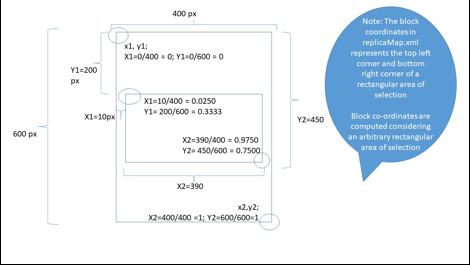
<Block coord="0.0010,0.5500,0.9999,0.9980"/>
</Location>
</Article>
</Page>
<Page pageNum="5" file="images/pages/pg-006.jpg" thumbFile="images/pages/pg-006-thumb.jpg" hi-res-file="images/pages/pg-006-hi-res.jpg" hi-res-thumbFile="images/pages/pg-006-hi-res-thumb.jpg">
<Article file="article_food_and_fun-1.xml" fragmentId="article_food_and_fun-1-1">
<Location>
<Block coord="0.0010,0.7500,0.9999,0.9980"/>
</Location>
</Article>
</Page>
<Page pageNum="6" file="images/pages/pg-007.jpg" thumbFile="images/pages/pg-007-thumb.jpg" hi-res-file="images/pages/pg-007-hi-res.jpg" hi-res-thumbFile="images/pages/pg-007-hi-res-thumb.jpg">
<Article file="article_food_and_fun-2.xml" fragmentId="article_food_and_fun-2-1">
<Location>
<Block coord="0.0010,0.7500,0.9999,0.9980"/>
</Location>
</Article>
</Page>
</Pages>
</ReplicaMap>
In the above mentioned sample replicaMap.xml:
<Page pageNum="xx" file="file path of Fire image resolution" thumbFile="File path of fire image thumbnail resolution" hi-res-file="File path of hi-res file image resolution" hi-res-thumbFile="File path of hi-res fire image thumbnail resolution">
<Article file="corresponding article name" fragmentId="its fragment id">
<Location>
<Block coord="x1,y1,x2,y2"/>
</Location>
</Article>
</Page>
NITF Feed Specifications
News Industry Text Format (NITF) is a format used for representation of news by various news agencies and newspaper publishers. Supported by many publishers' content management systems (CMS), this standard allows Kindle publishing to use existing CMS outputs where possible. NITF concretely defines the various elements of a news article (byline, title, summary, etc.) which gives a publisher more control over what content is used as the element in question. For detailed information on the NITF standard, visit https://iptc.org/standards/nitf/
RSS-NITF is the most commonly used Multi-Level Feed Format. In this format, the sections and article manifests should be in standard RSS feed format. The article content should be provided in NITF format.
Section and Article Manifest files: The Section and Article manifest are standard RSS format files and should include the following information.
|
Table 1: Required Elements in Section and Article Manifest Files |
||||||||||||||||||||||||
|
NITF Article Files
|

Example of RSS-NITF feed: You can download the complete RSS-NITF feed here.
Section Manifest file: Provides links to the list of Sections.
<?xml
version="1.0" encoding="UTF-8" ?>
<rss version="2.0">
<channel>
<title> Amazon RSS-NITF - Sample</title>
<link> http://www.aldenteblog.com/</link>
<pubDate>Mon, 25 May 2007 13:00:11</pubDate>
<item>
<link>Section_News.xml</link>
</item>
<item>
<link>Section_Business.xml</link>
</item>
<item>
<link>Section_Feature.xml</link>
</item>
</channel>
</rss>
Corresponding Kindle Section List:

Article Manifest file: Provides links to the list of Articles in a Section.
<?xml
version="1.0" encoding="UTF-8" ?>
<rss version="2.0">
<channel><title>News</title>
<item>
<link>Article_News1.xml</link>
</item>
<item>
<link>Article_News2.xml</link>
</item>
<item>
<link>Article_News3.xml</link>
</item>
</channel>
</rss>
Corresponding Kindle Article List:
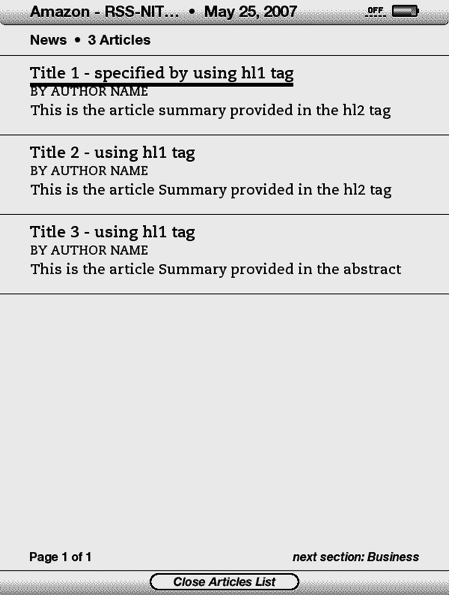
Article file: Provides Article contents.
<?xml
version="1.0" encoding="UTF-8"?>
<nitf version="-//IPTC//DTD NITF 3.3//EN"
xmlns:extra="urn:extra-functions">
<head>
<title>News - Title 1 specified in the title tag</title>
<docdata
management-status="usable">
<doc-id id-string="527997" regsrc="AMZN" />
<urgency ed-urg="2" />
<date.issue norm="2009-07-14T22:35:00Z" />
<date.release norm="2009-07-14T18:30:00Z" />
<du-key generation="1" key="GN3;527997;Amazon.4" />
<doc.copyright holder="Amazon.com" />
<key-list>
<keyword key="" />
</key-list>
</docdata>
<pubdata type="print" date.publication="2009-07-15T20:55:00"
item-length="7081" position.sequence="1"
unit-of-measure="character" />
</head>
<body>
<body.head>
<hedline>
<hl1>
Title 1 - specified by using hl1 tag</hl1>
<hl2 class="subhead">This is the article summary provided in
the hl2 tag</hl2>
</hedline>
<byline>By Author Name</byline>
<dateline>Seattle WA</dateline>
<abstract> <p>This is the article Summary provided in the
abstract tag</p> </abstract>
</body.head>
<body.content>
<block>
<p
width="0" align="left"> The first paragraph of an
article should be flush left with no indentation. To do this specify
width="0" in the p tag. Also all paragraphs must be left aligned.
specify align="left" in the p tag for all paragraphs….</p>
<br/>
<p align="left" width="0"> Subheadings should be
flush use align=left and width=0 </p>
<br/>
<p align="left">Article content added here…..</p>
<br/>
<p align="left" width="0"> Add a line break before
subheadings </p>
<p align="left">More article content…</p>
</block>
<block>
<media
media-type="image">
<media-producer>Photo Credit - Photo Credits can be provided in
media-producer tag</media-producer>
<media-caption>Photo Caption - Photo captions can be provided in media-caption tag. You can only provide one image per article if using media tags. The image will always display at the top of the article. </media-caption>
<media-reference
mime-type="image/jpeg">img1.jpg</media-reference>
</media>
</block>
</body.content>
<body.end />
</body>
</nitf>
Corresponding Kindle Article:
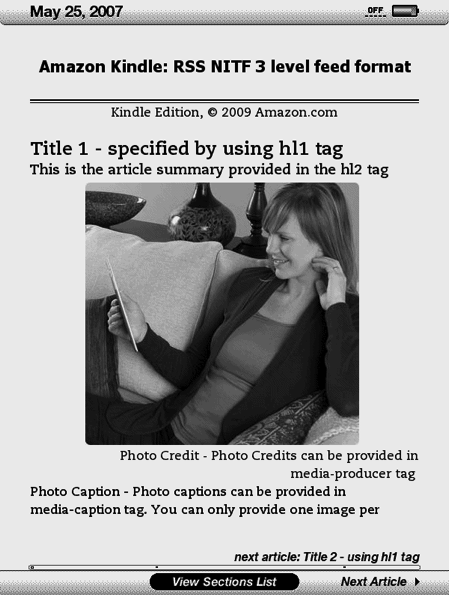

RSS-HTML Feed Format
In this format, the article manifest files will be in standard RSS format and follow the same structure and as specified in the RSS-NITF Feed format.
XHTML Article File
When using this feed format, the article content must be provided in standard XHTML format. XHTML is a more consistent form of HTML that reduces the amount of interpretation required to format an article for use on Kindle. For best results, we recommend providing the cleanest XHTML document as possible. In general, this means:
· The feed should be proper XHTML (detailed below).
· Site header, footer, user comment areas, or navigational structures should not be present.
· When formatting an XHTML article, certain elements are required as specified below. Without these elements, KPP will make a best effort at formatting your article based on heuristics, but results could be inconsistent.
|
Note: A ''Kicker'' (line displayed above the Title) cannot be specified discretely in the XHTML article format.
If your XHTML location is part of your standard publication website, Amazon attempts to detect if your web pages have a ''Print'' URL. The Print URL typically links to a page that is designed for printing purposes.
Example of XHTML Article:
<?xml
version="1.0" encoding="UTF-8"?>
<html>
<head>
<meta name="description" content="This is the article Summary
provided in the hl2 tag"/>
<meta name="author" content="By Author Name"/>
<meta name="dc.date.issued" content="20091119"/>
</head>
<body>
<h1> Business Title 1</h1>
<p>
<img src="img8.jpg"/>
This is a photo caption provided in media-caption tag
</p>
<p width="0" align="left">Add article content here
....</p>
</body>
</html>
Note: If you are unable to provide feeds in the required formats, but can provide feeds in other XML formats, notify newsstand@amazon.com.

Other Technical Specifications
Encoding Type
The recommended encoding type for all manifest and article files is UTF-8. If KPP fails to detect your encoding, it defaults to UTF-8, which can cause unsatisfactory rendering of text on Kindle (accented characters appearing as “?” or other illegible symbols). For XHTML article files, KPP attempts to determine the encoding of your file using the charset as in:
<meta http-equiv="Content-Type" content="text/html;charset=utf-8">
For RSS manifest files and NITF article files, KPP attempts to determine the encoding of your XML file using the encoding as in:
<?xml version="1.0" encoding="UTF-8"?>

Publication Date
A periodical is required to have a publication issue date. This field is used to display the current issue in the Kindle store and to organize content on the Kindle device.
The publication date is always the maximum date of all article dates or the date in the manifest file. Check all valid date formats here.

Missing Article Elements
If an article element is not located within an article file, we look to see if they can be found in the parent manifest. For example, if we find that the title element cannot be located in an article file we may look at the associated RSS <title> element if it exists. In general, however, you should place these attributes directly in the article files themselves.

Adding Images
Images appear inline within content or specified as a lead image in the case of NITF articles. All images in general are expected to follow the guidelines below:
· Images are preferred in GIF and JPEG formats; although we also accept images in BMP and PNG formats.
· If you are using images for schemas, charts, tables, maps or anything that includes text, you must pay special attention to the legibility of the final image that renders on Kindle.
o The maximum optimal size of an image is 960 x 720 pixels.
o Photographs should be in JPEG format.
o Line art or graphics drawn with a limited number of solid colors (e.g., images with text, charts, and tables) should be in GIF format.
By using <img> tags, you can add more than one image in an article. Images will be displayed in the same location where the <img> tag is located.
Example:
<content>
<img src="filename" credit="credit of the
image">caption</img>
</content>
By using <media-reference> tags, you can add one image per article. The image will always be displayed at the beginning of the article.
Example:
<block>
<media media-type="image">
<media-producer>Add Photo credits here</media-producer>
<media-caption>Add Photo captions here</media-caption>
<media-reference
mime-type="image/jpeg">XXX.jpg</media-reference>
</media>
</block>

Formatting Tables
Tabular content should be provided using HTML <table> tags. If the table size exceeds the Kindle device screen size, readers have the ability to select and pan the table to view full content. We will not display any images that are provided in tables.
· You can use table elements to render simple tabular content like sports scores or weather reports
· Do not use table elements to accomplish complex layout. Large or complicated table layouts will render poorly, particularly when text is resized on the Kindle device.
· Readers will have to pan tables that are typically broader than 5 columns. Restrict yourselves to 5 or less columns if possible.

HTML Formatting
Both NITF and XHTML format articles allow basic HTML to control some aspects of rendering behavior. Check the complete list of supported HTML tags and tag attributes.
Notable exceptions to basic HTML include:
· CSS styling is not supported for layout.
· Font faces and variations are not supported with the exception of an allowance for monotype font using the <code>, <samp>, <kbd> and <tt> tags. The <font> tag, font-size and font-color attributes are not supported.
· The first line of any paragraph denoted by a <p> tag is automatically indented. The first paragraph of text in an article and paragraphs that follow images have special "no-indent" behavior.
· Background color and borders cannot be applied to text or paragraphs.

Preview
To test your Kindle file:
- Click Generate Preview. This process can take 20 minutes to complete. If you want to be notified when the preview is ready, enter your email address in the Technical Contact Email box and click the Submit button.
- When the preview is ready, the link(s) appear below the Generate preview link button:
- If you included an XML feed, Download MOBI for sideloading is displayed.
- If you included a Folio feed, Download KFX for sideloading is displayed.
- If you included XML and Folio feeds, both links are displayed.
- Any errors or warnings are also displayed.
Click the link to download the preview file.
- Test your Kindle content with a Kindle E-reader, a Fire tablet, or the Kindle application on other devices.
Sideloading to Fire tablets:
c. Connect your Fire tablet to your computer using the USB cable and open the device's Internal Storage file folder.
d. Drag your preview file into the Documents folder and then unplug your device. On your device, go to the Documents folder and click the name of the file to open your periodical.
Sideloading to Kindle E-readers:
c. Connect your Kindle E-reader to your computer using the USB cable and open the device's Internal Storage file folder.
d. Drag your preview file into the Documents folder and then unplug your device. On your device, go to My Library and click the cover image of your periodical to open it.
Sideloading to Android devices:
d. Confirm that the Amazon Kindle app is installed. If not, you can download it for free from the Android Play Store.
e. Connect your device to your computer using the USB cable and then pull down the Android menu from the top of the device and change USB charging options to Transfer Files to enable the transfer of Kindle files.
f. Open the device's Internal Storage file folder, drag your preview file into the Kindle folder and then unplug your device. On your device, go the Amazon Kindle app and click the cover image of your periodical to open it.
Sideloading to Apple devices (iOS):
f. Open iTunes on your computer and select your device.
g. Select File Sharing along the sidebar, which highlights the list of applications.
h. Select Kindle and a list of Kindle documents appears next to the applications list.
i. Select Add File and add the preview file you wish to preview on iOS.
j. Open the Amazon Kindle app from the iOS device and click Sync from the drop-down menu to display the sideloaded magazine under All Items in the Device toggle option.

Frequently Asked Questions
Here you will find the most commonly asked questions on the following topics:
· Processing Images and Tables
· Article Correction and Retraction
· Other
Getting Started
1. How do publishers start the Kindle integration process?
Click the Resources menu to review the User Guide and FAQ. To add a new publication, click the Your Publications link at the top of the screen. Click Add Title and follow the Integration Details steps to add your publication to the Kindle.
2. Which languages are supported by KPP?
KPP currently supports publications in English, French, Spanish, German, and Italian. The feeds should use UTF-8 encoding. Notify newsstand@amazon.com if you would like to add a publication in a language that uses UTF-8 encoding but is not currently supported by KPP.
3. How much time is required for adding a new publication?
The average time required for launching a new publication is 3 to 4 weeks. The integration time varies for each publication and can be reduced if the feed meets the required technical specifications and QA Guidelines.

Feed and Technical Issues
1. What information is required for adding a new publication?
See the Integration Checklist for details on the information that is required for adding a new publication.
2. Which XML formats are supported by KPP?
KPP accepts XML feeds in NITF and XHTML format. For more details, see the Feed Specification Overview.
3. Can publishers provide files in PDF, InDesign, mobi, or epub format?
KPP cannot accept files in PDF, InDesign, mobi, or epub format.
4. How should feeds be delivered?
Your RSS feeds can be provided via HTTP or SFTP. The files can be hosted on the publisher’s side or uploaded to Amazon's FTP server. Notify newsstand@amazon.com if you need a new account on Amazon's FTP server.
For HTTP feeds: KPP requires a static feed URL that points to the manifest.xml file. Do not include a "date" in the feed URL. Encode all special characters in the URL (click here for more details on URL encoding).
For SFTP feeds: All files should be uploaded to a static folder (e.g., "CurrentIssue") on Amazon's FTP server. Replace the existing files in this folder for every new edition. The feed URL should have the format: ftp://userid:password@epubs.amazon-digital-ftp.com/CurrentIssue/manifest.xml
5. When should feeds be delivered?
You must deliver your feeds at least one hour before the time when the print edition is available on newsstands. For online-only publications, provide the feed after most content has been updated for the day or the publishing duration. Only newly added content should be included in the Kindle feeds.
6. Can Kindle feeds be password protected?
Kindle feed URLs can be password protected. If you choose do so, please specify the login credentials within the feed URL (e.g., http://userid:password@domainname.com/kindle/rss.xml). Use relative links if using a multi-level feed.
7. Can publishers publish multiple editions in a day?
Kindle periodicals are only published once per day. There will be no incremental updates to the Kindle content after the files have been published for a day. Incremental updates can be delivered with Kindle blogs. See http://kindlepublishing.amazon.com for more information on Kindle blogs.

Pricing and Revenue Share
1. How is the Kindle edition price determined?
Amazon will determine the Kindle edition price based on several factors, including the subscription price for the print edition (when applicable), the suggested digital price, the average Kindle file size, publishing frequency, and pricing of similar products in the Kindle store.
Kindle edition price can only be determined after Amazon processes the feed and determines the average file size. You will receive an email notification with the pricing details prior to launch of the publication. If you have any questions, send an email to newsstand@amazon.com.
2. Can publishers set the Kindle price?
Amazon determines the Kindle edition price as stated in the terms and conditions. If you have any questions or concerns about the price, send an email to newsstand@amazon.com.
3. How is revenue shared with publishers?
Revenue is shared as stated in the terms and conditions. Payments can be made either by check or electronic deposits. The $8 check processing fee will be waived for all non-US publishers. The first payment is made 60 days after the end of the month in which there is a paid subscription. Check payments require a minimum payment amount of $100.
4. Can publishers provide free periodicals on the Kindle?
There are no free periodicals on the Kindle. Customers are charged for Kindle editions even if the same content is provided at no charge through other media.
All publications will have two weeks of free-trial subscriptions. Customers are not charged if they cancel their subscription within two weeks.
5. How can publishers access subscription and payment reports?
You can access monthly subscription and payment reports by clicking Your Account and selecting Digital Media Reports. Reports are generally uploaded after the 15th of every month. If you have any questions on the reports, notify newsstand@amazon.com.
6. How do publishers see subscription counts?
You can see the trial and total subscription counts by clicking Your Account and selecting Performance Report. These counts are updated every day.
7. Can Amazon share subscriber names and addresses?
Amazon will not share subscriber names and addresses with publishers.
8. Can publishers bundle Kindle subscriptions with other subscription plans?
Amazon cannot bundle Kindle subscriptions with any print or online subscriptions at this time.

Periodicals Reporting
This guide will take you through a short tour of our payment reports.
You should receive payment reports twenty days after the end of each month. The payment reports include details of the sales made for the month prior and the amount of your revenue share payment. There are two reports: one for subscription sales and another for single-issue sales. Below is a screen shot of a typical vendor payment report. We will use this report as an example to explain what all the columns mean, how vendor payment reports are structured, and how this information can be used.
First, we will discuss the data in each column.
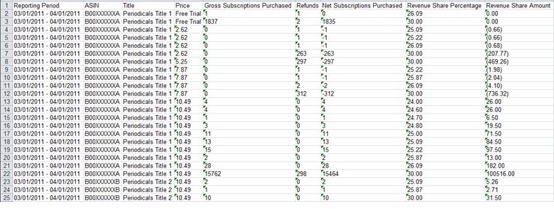
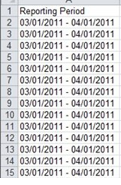
1. Column A: Reporting Period
The reporting period column indicates the date range for the data. As you can see in the example, the date range is from March 1, 2011 to April 1, 2011. This is to indicate that the report displays all data for the month of March.
Note: Reports in the US are in US date format (MM/DD/YYYY) and reports from the UK and DE are in EU format (DD/MM/YYYY). For this reason, it may appear that your reports only represent a few days out of the month rather than the entire month, but this is only because of the format of the date.
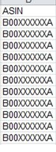
2. Column B: ASIN
The ASIN column displays the Amazon Standard Item Number. An ASIN is a unique identifier given to every product sold on Amazon’s site, similar to a SKU.
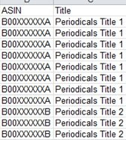
3. Column C: Title
This column indicates the title of your publication, which will always have its own individual ASIN shown in column B. If you have multiple publications, your report is sorted so that all transactions for each title are grouped together.
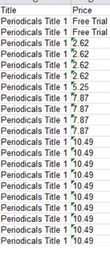
4. Column D: Price
The price column indicates the price for each transaction in that row. Free trials are indicated on this part of the subscription report. There is no price or payment associated with these transactions, so these transactions will not affect the payment amount.
In the example, the full price for the publication is $10.49, which is shown in the transactions at the bottom. The prices that are less than this amount indicate a pro-rated cancellation amount for those orders. This means that a customer has cancelled their subscription partway through the monthly subscription cycle and the remaining amount they already paid for the month needs to be refunded.
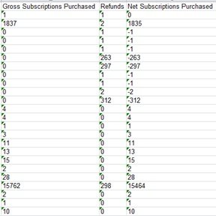
5. Columns E-G: Gross Subscriptions Purchased, Refunds, Net Subscriptions Purchased
The numbers given are just a count of purchases or cancellations; they are not a dollar value.
· Column E indicates the number of purchases made. This does not take cancellations into account.
· Column F only counts the total number of cancellations made and does not take the number of purchases into account.
· Column G is calculated by subtracting the cancellations in column F from the purchases in column E.
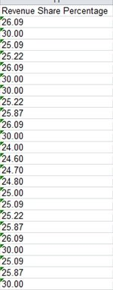
6. Column H: Revenue Share Percentage
This column indicates the revenue share percentage that is used to calculate the revenue share amount on the report. The example given is of a vendor who has a 30% revenue share. There are also a number of revenue share percentages that are below 30%; these percentages are used when transactions include the Value Added Tax (VAT) used in Europe. Because there are many different VAT rates for European countries, there are many different revenue share rates displayed on your payment reports, all of which are based on the revenue share rate in your contract.
7. Column I: Revenue Share Amount
The revenue share amount column indicates the amount of money that is to be paid to the publisher for the transactions indicated in that row. In order to determine your total payment for the month, you will need to add up this column on both your subscription report and your single-issue report, and then add those two totals together.
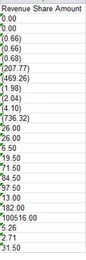
8. Number Formatting
In order to change the cells from general to number format, you will need to go through a couple of steps. First, you can identify the cells that contain numbers but are not in number format by the green arrow in the upper left corner of the cell, which you can see in the example.

Next, highlight the cells you wish to change to number format and an exclamation alert pops up next to the cell as seen in the example.
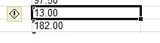
Click the exclamation alert and select Convert to Number. Microsoft Excel will recognize the data as numbers, which allows you to analyze the data as you like.

Processing Images and Tables
1. Do publishers need to provide a new product image (cover image) with every edition?
Only one image is required for newspapers. For magazines, Amazon recommends that you update the product image in KPP for every new edition so that the product image on the website will always match the latest edition.
Note: The product image will only update on the website if you "republish" the title. The file will not update on the website if you Save Draft. To "republish" you must complete the process.
2. How do I include images in the feed?
See the Adding Images section for details on including images in the feed.
3. How do I include the publication cover image in the feed?
You can include your publication's cover image in the feed by providing a "Cover" section and article in the feed, using the same format as the rest of the content. To include a full-page cover image, you must:
1. Add a section called "Cover" as the first section in the section manifest file.
2. The Cover section should link to a Cover article with article title "Cover".
3. The Cover article should be an empty article and not include any text. The cover article should only include a link to a high-resolution cover image using the standard format for adding images.
If all the above requirements are met, a full-page cover image is automatically added as the first article in the Kindle files.
4. Should images be converted to grayscale?
No. KPP accepts color images. For best results, provide images in the highest possible resolution and with size greater than 600 x 800 pixels (width x height).
5. Are there any limitations on the number of images that will be included in the Kindle files?
Amazon can limit the number of images in the Kindle files. The number of images is determined based on the Kindle edition price, Kindle file size, and publishing frequency. KPP allocates images across sections so that most lead articles in every section include an image (e.g., front page, news, sports, etc.). Amazon recommends that you provide all images in the feed. We will include more images as we continue to improve our processes.
Thumbnail size images (less than 100 pixels in width and height) are dropped.
6. How do publishers include tabular content in the feed?
Amazon accepts content in standard XHTML <table> tags. You can provide content within <td> and <tr> tags. If the table size exceeds the Kindle device screen size,
readers have the ability to select and pan the table to view full content.
Note: KPP will not display any images that are provided in tables.
7. Are there any limitations/restrictions on the number of tables that are included in the Kindle files?
There are no restrictions on the number of tables that can be included in the feed. For better customer reading experience, please break the large tables into smaller sizes.

Kindle File Formats
1. Are there multiple Kindle file formats? What is the difference in these files?
You can generate a sideloadable Kindle file (.mobi) using the preview option in KPP. This format is designed for all devices (Kindle e-Readers, Fire tablets, and the Kindle applications for Android and iOS).
Kindle e-Readers: On this type of device, your periodical opens to the cover and you can navigate to any section or article by clicking the links in the Table of Contents. The image view is not available on e-Readers.
Fire tablets: On this type of device, your periodical opens to the cover and you can navigate to any section or article by swiping through the pages. You can also switch to text mode by double-tapping the image view. You can switch back to image view by clicking the x in the upper right corner of text view.
2. How can publishers view the Kindle files?
You can view Kindle files by using the preview function in KPP.
You can also view downloaded files by copying them onto a Kindle device. To copy a file, connect the Kindle to a PC by using the USB cable provided with your Kindle device. Copy the corresponding Kindle file to the Documents folder on the Kindle. Unplug the USB cable. The copied file should appear on the home page of your device.
3. Can publishers get free subscriptions to their titles?
Amazon cannot provide free subscriptions at this time. You will need a paid subscription to get wireless delivery on your Kindle device.
An alternative is to download the Kindle mobi files from KPP and copy the file to your Kindle device. To copy the file, connect the Kindle to a PC using the USB cable provided with your Kindle device. Copy the corresponding Kindle file to the Documents folder on the Kindle. Unplug the USB cable. The copied file should appear on the home page of your device.

Article Correction and Retraction
1. How does Amazon process article retraction requests?
To retract an article, send an email to newsstand@amazon.com. In the email, specify the publication title, issue date, and the article title(s) to be removed. Amazon will update the Kindle file and remove the requested article(s). Subscribers who download the file after this update will not receive the retracted article(s). Amazon will not replace files that have already been delivered to subscriber devices. (This is similar to the print edition.) Amazon will only remove articles if they were published within the past 14 days. Retraction requests are processed once a week. Amazon will send an email notification after processing the retraction request.

Other
1. Will there be any promotions for new titles on the Amazon website?
Amazon will determine any promotions on a case-by-case basis.
2. Can we add our publication to the Kindle newspaper or magazine landing page on the Amazon website?
Amazon will determine which publications to feature on the landing page of the Kindle store.
3. How do you process article correction requests?
Amazon will not make corrections to an article after it has been published to Kindle. Please validate the feed contents before they are delivered to Amazon. You can list any corrections in the next edition (similar to print editions).
4. Can publishers change the format (layout, fonts or style) of the Kindle files?
The Kindle file formats cannot be changed. Please send your comments or suggestions to newsstand@amazon.com. We will consider your suggestions as we make future enhancements.
5. Can publishers change the layout of the Section or Article lists?
Amazon cannot change the layout or format of the Section and Article lists. Please send your comments or suggestions to newsstand@amazon.com. We will consider your suggestions as we make future enhancements.
6. Why does Amazon require access to the print edition content?
All publications go through a QA review process and have to meet the QA requirements prior to launch. During this QA review process, Amazon matches the Kindle files to the print edition. Provide access to PDF files or e-editions for the QA review process. If you need access to a FTP account to upload the PDF files, notify newsstand@amazon.com.
7. How can publishers contact Amazon?
You can contact Amazon by sending an email to newsstand@amazon.com.

Appendices
· D: Supported HTML Tags and Attributes
· E: Adding Images in the Feed
A: Sample RSS-NITF Feed
Click here to download the NITF zip file.
Instructions
1. Unzip file and upload to /kindle folder on your webserver.
2. Open kindlepublishing.amazon.com, enter required fields and go to the feeds page.
3. Add your feeds to kindlepublishing.amazon.com using addresses like:
o http://yourserver.com/kindle/samples/nitf/hierarchical/hierarchical-title-manifest.xml
OR
o Add each of the sections
http://yourserver.com/kindle/samples/nitf/multipleIndividual/Section_Business.xml
http://yourserver.com/kindle/samples/nitf/multipleIndividual/Section_Feature.xml
http://yourserver.com/kindle/samples/nitf/multipleIndividual/Section_News.xml
4. Validate the feed.
5. Generate a full preview.
6. Tweak your feed to create a newspaper and preview it.

B: Sample RSS-XHTML Feed
Click here to download the XHTML zip file.
Instructions
1. Unzip file and upload to /kindle folder on your webserver.
2. Open kindlepublishing.amazon.com, enter required fields and go to the feeds page.
3. Add your feeds to kindlepublishing.amazon.com using addresses like:
o http://yourserver.com/kindle/samples/xhtml/hierarchical/hierarchical-title-manifest.xml
OR
o Add each of the sections
http://yourserver.com/kindle/samples/xhtml/multipleIndividual/Section_Business.xml
http://yourserver.com/kindle/samples/xhtml/multipleIndividual/Section_Feature.xml
4. Validate the feed.
5. Generate a full preview.
6. Tweak your feed to create a periodical and preview it.

C: Supported Date Formats
Publishers can provide publication dates in any of the following formats.
|
Format |
Sample |
Comments |
|
yyyyMMdd'T'HHmmss EEE |
20091101T121530 Sun |
Default time zone of periodical used |
|
EEE, dd MMM yyyy HH:mm:ss Z |
Fri, 05 Feb 2010 19:00:00 -0700 |
|
|
EEE, dd MMM yyyy HH:mm:ss |
Fri, 05 Feb 2010 19:00:00 |
Default time zone of periodical used |
|
yyyy-MM-dd hh:mm:ss |
2009-11-01 12:15:30 |
Default time zone of periodical used |
|
yyyy-MM-dd |
2009-11-01 |
Default time zone of periodical used |
|
yyyyMMdd |
20091101 |
Default time zone of the periodical used |
|
MM/dd/yyyy hh:mm |
11/01/2009 12:15 |
Default time zone of periodical used |
|
EEE MMM dd HH:mm:ss yyyyZ |
Sun Nov 01 12:15:30 2009 PST |
|

D: Supported HTML Tags and Attributes
|
HTML Tag |
Description |
Supported attributes |
Unsupported attributes |
|
<?xml?> |
Standard header for a XML document |
|
|
|
<!--...--> |
Comment |
|
|
|
<a> |
Creates an anchor point or target point for hyperlinks |
href, id, name |
class, rel, rev, style, title |
|
<b> |
Makes the enclosed text bold |
id |
class, style, title |
|
<big> |
Makes the enclosed text one font size larger than the current or default font size |
|
|
|
<blockquote> |
Generates a 1-em margin above the text it encloses |
id |
cite, class, style, title |
|
<body> |
Encloses the body text of an source file |
|
bgcolor, class, id, style, text, title |
|
<br /> |
Generates a line break of a size equal to the current line-height |
id |
class, clear, style |
|
<center> |
Centers text horizontally |
|
|
|
<cite> |
Indicates that a section of text is quoted from another source |
|
|
|
<dd> |
Used within a <dl> or definition list block, this tag encloses the definition of a term that makes up part of a definition list |
id, title |
class, style |
|
<dfn> |
Used at first mention when a term is defined, and renders enclosed text as italics |
|
|
|
<div> |
Defines a 'block' |
align, id |
bgcolor, class, style, title |
|
<dl> |
Creates a glossary-style list containing <dt> and <dd> tags. |
id, title |
class, style |
|
<dt> |
Encloses a term to be defined in a definition list. |
id, title |
class, style |
|
<em> |
Emphasizes a text element in italics. |
id, title |
class, style |
|
<head> |
typically encloses the <title>, <base>, <style>, and <link> tags of HTML document source |
|
|
|
<h1 to h6> |
Defines heading styles of varying sizes, with <h1> being the largest and <h6> being the smallest |
|
|
|
<hr /> |
create a horizontal rule |
color, id, width |
align, class, noshade, size, style, title |
|
<html> |
Indicates the start and end of an HTML document |
|
|
|
<i> |
Italic |
class, id |
style, title |
|
<img /> |
Defines an inline image within the text |
align, border, height, id, src, width |
alt, class, hspace, longdesc, lowsrc, style, title, usemap, vspace |
|
<li> |
Used to indicate an item in an list |
class, id |
style, type, title |
|
<ol> |
Creates a numbered list from the list items it contains, each of which has to have a <li> tag |
id |
class, start, style, type |
|
<p> |
Defines a paragraph of text, indents the first line of the paragraph, and creates a line break at the end of the enclosed text |
align, id |
class, style, title |
|
<s> |
Identical to <strike> |
id, style, title |
Class |
|
<span> |
A container for in-line text. |
bgcolor |
Title |
|
<strike> |
Creates strikethrough text |
class, id |
style, title |
|
<strong> |
Contains text rendered with bold. Same as <b> |
class, id |
style, title |
|
<sub> |
Reduces the font size of the enclosed text and floats it below the baseline as subscripted text |
id |
class, style, title |
|
<sup> |
Reduces the font size of the enclosed text and floats it below the baseline as subscripted text |
class, id |
style, title |
|
<title> |
Encloses the title of a document |
|
|
|
<u> |
This tag underlines any text it encloses |
id |
class, style, title |
|
<ul> |
Generates a bulleted list from the list items it contains. |
class, id |
style, title |

E: Adding Images in the Feed
KPP can process .jpeg, .gif, or .bmp images that are provided in <img> or <media-reference> tags.
With <img> tags, you can add more than one image in an article. Images are displayed in the same location as the <img> tag.
<content>
<img src="filename" credit="credit of the image ">caption</img>
</content>
With <media-reference> tags, you can add one image per article. The image is always displayed at the beginning of the article.
<block>
<media media-type="image">
<media-producer>Add Photo credits here</media-producer>
<media-caption>Add Photo captions here</media-caption>
<media-reference
mime-type="image/jpeg">XXX.jpg</media-reference>
</media>
</block>

F: Character Reference
A character can be represented in three ways:
· by the actual character
· by the numeric character reference (e.g., &#nnnn; where nnnn is the Unicode value of the character)
· by entities where the character is referenced by a name (e.g., & or á)
Usually, the 2nd and 3rd methods are used to represent special characters.
Regarding entities, XML understands only 5 entities (" & ' < >) by default. If other entities are used, they must be declared at the top of the XML file.
Example:
<!DOCTYPE nitf PUBLIC "-//IPTC//NITF DTD 3.3//EN" "http://www.nitf.org/IPTC/NITF/3.3/specification/dtd/nitf-3-3.dtd" [ <!ENTITY % HTMLlat1 PUBLIC "-//W3C//ENTITIES Latin 1 for XHTML//EN" "http://www.w3.org/TR/xhtml1/DTD/xhtml-lat1.ent"> %HTMLlat1;
